The feedback feature.
Make it easy to collect feedback and complaints from your users with our customisable feedback builder.
Explore the Feedback Feature.
-

Create a new feedback form.
-

Complete a feedback form (from the app).
-

Complete a feedback form (from Community Manager).
-

Managing feedback form submissions.
-

Managing feedback form permissions.
Create a new feedback form.
To create a new feedback form, from the dashboard:
Click the ‘Feedback’ feature by clicking the link in the left side menu.
Select ‘Feedback Forms’ from the left side.
Select ‘New Feedback Form’.
Enter the following details:
Form Title
Email (the email address that will be notified of form submissions)
Description
Add each form field:
Select the field type.
Enter the field name (label).
Check if this field is optional.
Check if you would like this field to be the form submission title.
Select ‘Add New Field’ to add more fields.
Click ‘Save’.
Your form has now been created.

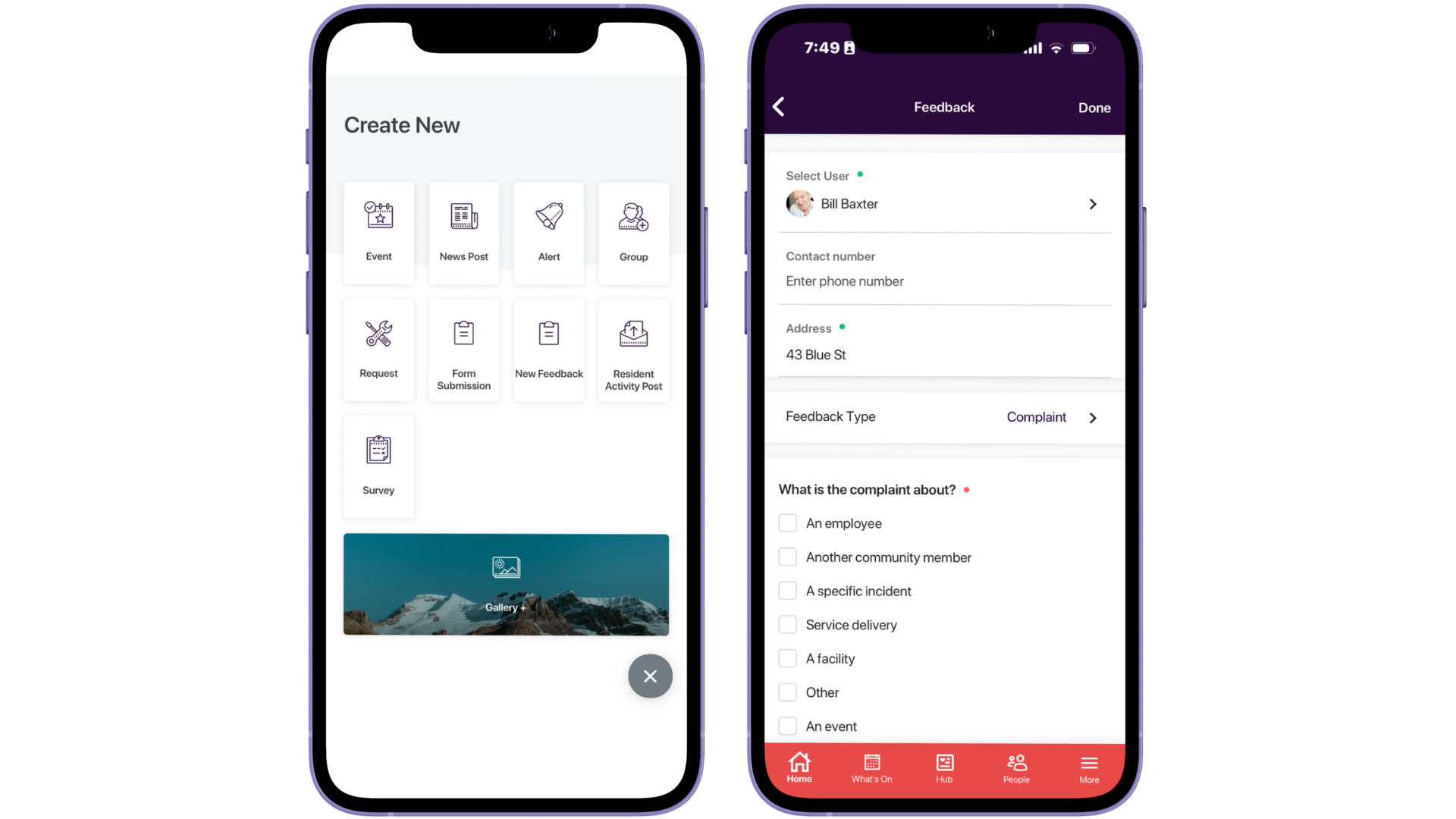
Complete a feedback form (from the app).
To complete a feedback form from the app:
Click the circled plus icon at the bottom right of screen.
Select ‘New Feedback’.
Enter the following details:
Name (prefilled)
Contact Number (prefilled)
Address (prefilled)
Select the relevant form from the list.
Complete the feedback form details including any relevant documents.
It’s now time to submit your feedback form, by clicking the ‘Done’ button at the top right of screen.
Users can view their feedback and track its progress under the Feedback section of the app. Staff users will see all feedback submissions while primary users will only see their own submissions.
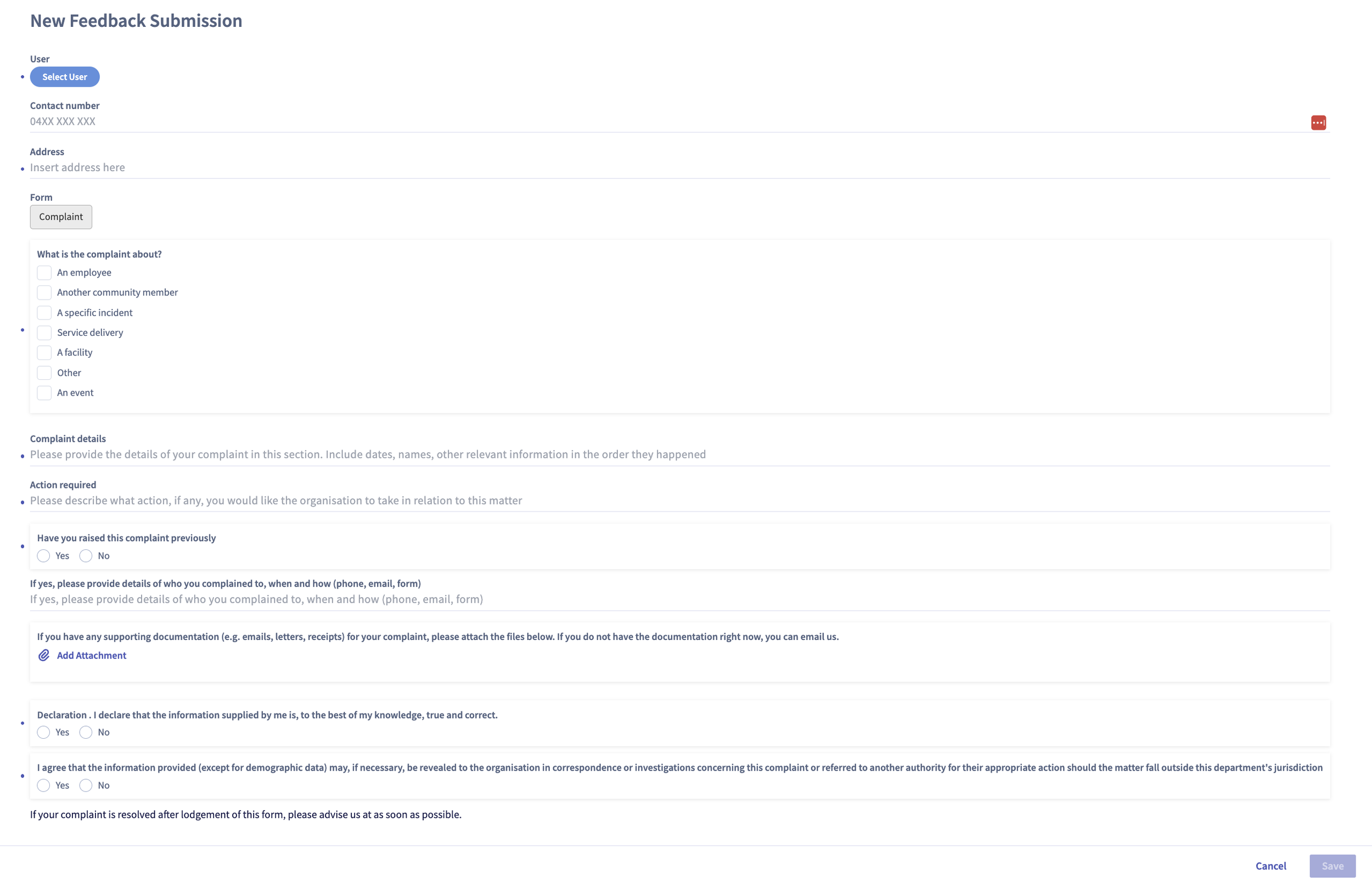
Complete a feedback form (from Community Manager).
To complete a feedback form, from the dashboard:
Click the ‘Feedback’ feature by clicking the link in the left side menu.
Select ‘New Feedback Submission’ at the top left of screen.
Enter the following details:
Name (search from the users list)
Contact Number
Address
Select the form name.
Complete the form details.
Attach any relevant documents.
It’s now time to submit your feedback form, by clicking ‘Save’.
Users can view their feedback and track its progress under the Feedback section of the app. Staff users will see all feedback submissions while primary users will only see their own submissions.
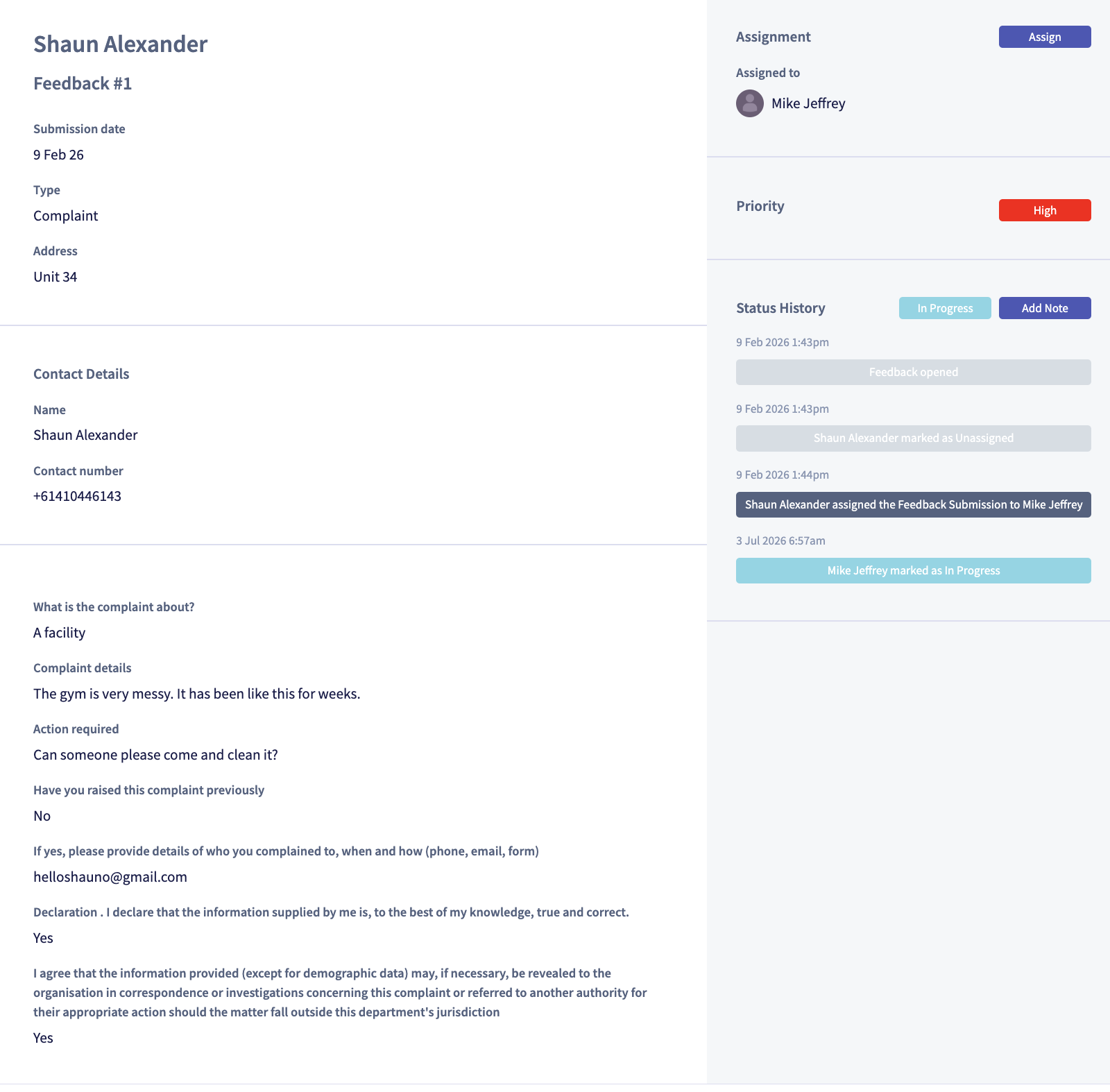
Managing feedback submissions.
Managing feedback submissions on Community Manager.
All feedback submissions can be viewed from the ‘View Feedback Submissions’ dashboard. The status for each submission will show if the job is unassigned / in progress / completed. Residents will be notified as the job gets updated.
To edit or manage the submission:
Click the request name or the pencil icon.
Assign this job to a member of staff by clicking ‘Assign’ and then selecting the relevant team member (they will receive a notification in the app).
Update the progress of the job by clicking the drop down list in the ‘Status History’ menu. Select either unassigned / in progress / completed.
Add a note to the job by clicking the ‘Add Note’ button (this is only visible to staff users).
Message the resident in the comments section to provide updates of the job.
Edit details of the request by clicking the ‘Edit Details’ button.
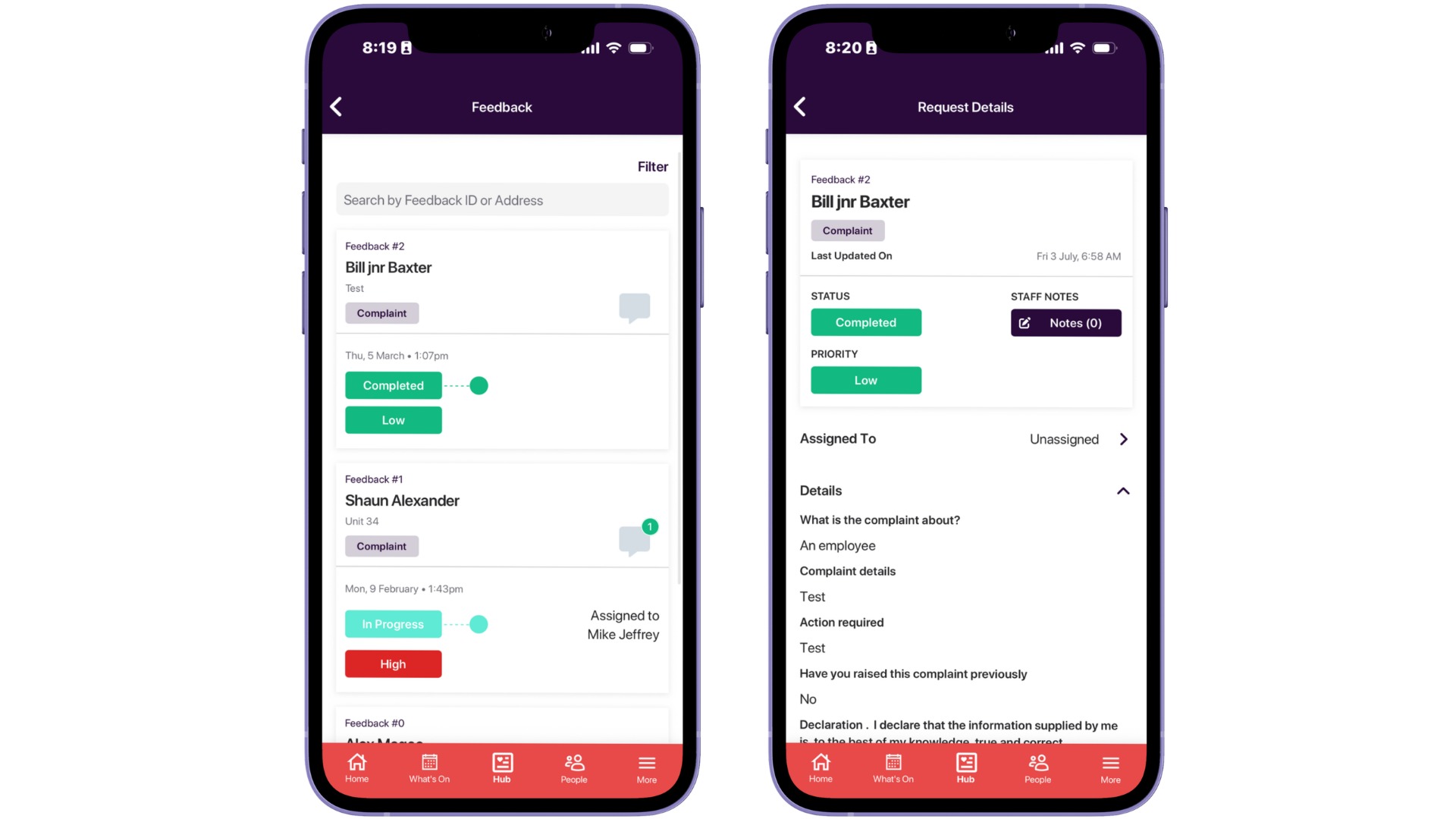
Managing feedback submissions on the app.
All feedback submissions can be accessed via the ‘Feedback’ section of the app. The status for each submission will show if the job is unassigned / in progress / completed. Residents will be notified as the job gets updated.
To manage the submission:
Click the request name.
Assign this job to a member of staff by clicking ‘Assigned To’ and then selecting the relevant team member (they will receive a notification in the app).
Update the progress of the job by clicking the ‘Status’ button (Unassigned). Select either unassigned / in progress / completed.
Add a note to the job by clicking the ‘Notes’ button and then click the Plus button (this is only visible to staff users).
Message the resident by clicking the ‘Leave Message’ button to provide updates of the job.
Managing feedback permissions.
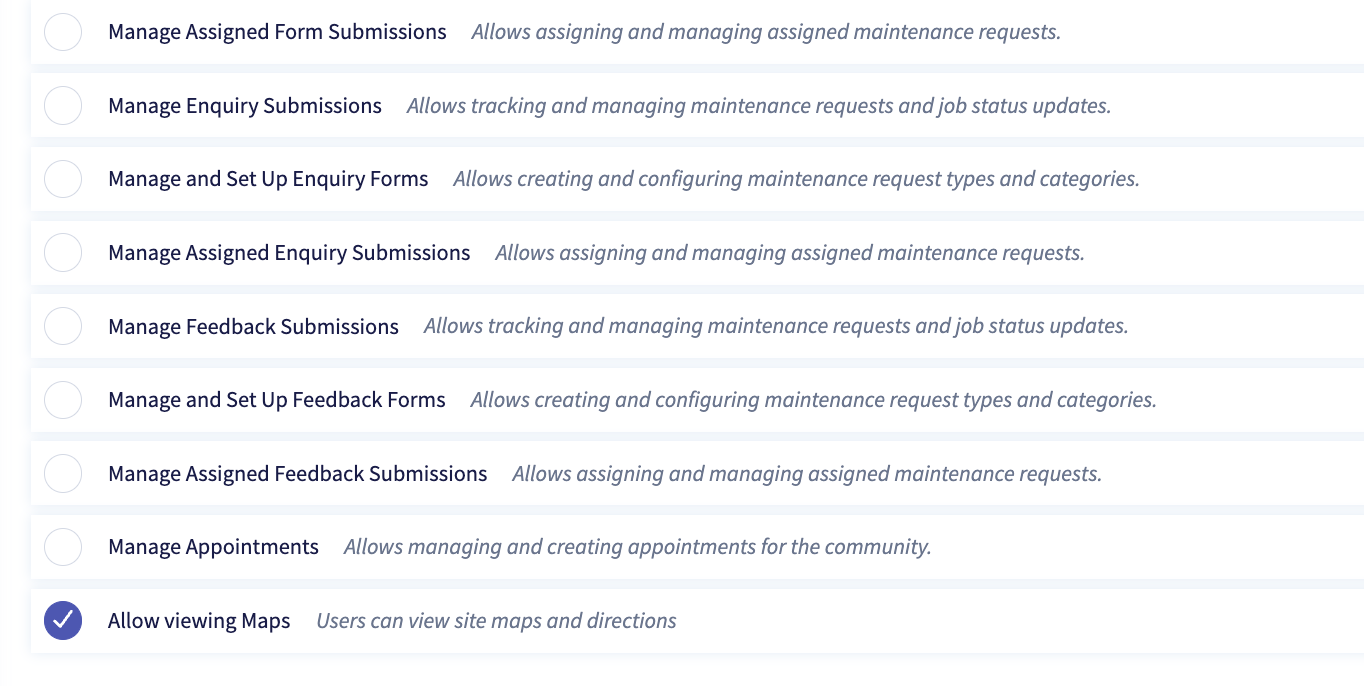
Feedback permissions can be managed in the user type settings section of Community Manager (Dashboard > Users > User Types):
Manage Feedback Submissions is general permission to see all submissions and workflow them as needed.
Manage and Set Up Feedback is specifically allowing for the set up of forms themselves.
Manage Assigned Feedback Submissions is for those who only see form submissions that have been assigned to them.