Understanding your Analytics
A world of data awaits.
Track how your community is engaging with your app and turn the numbers into meaningful insights.
Explore Analytics.
-

Understanding community engagement.
-

Filtering your data.
-

Reviewing your community metrics.
-
Exporting your data.
Understanding community engagement.
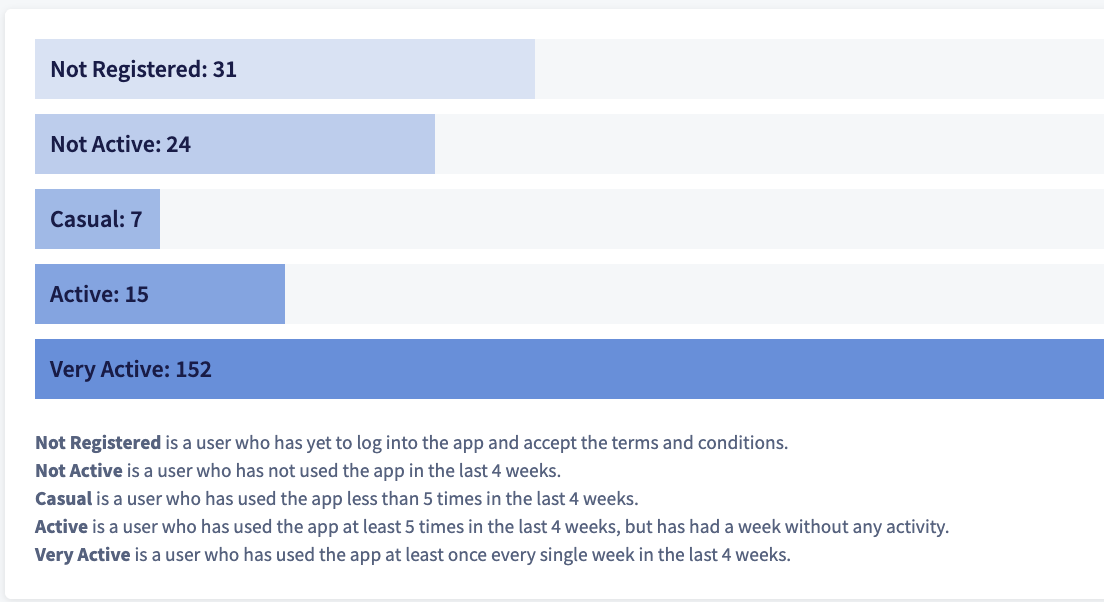
The User Engagement section sorts every member into five categories, from Not Registered through to Very Active, based on how often they have used the app in the last 4 weeks. Each category is defined on screen beneath the chart.
Use this to see how connected your community is. A large Not Registered or Not Active group is a good prompt to send a welcome email or run a re-engagement campaign.
Further information on inviting members can be found in the Inviting Your Community Members section of this user guide.
Filtering your data.
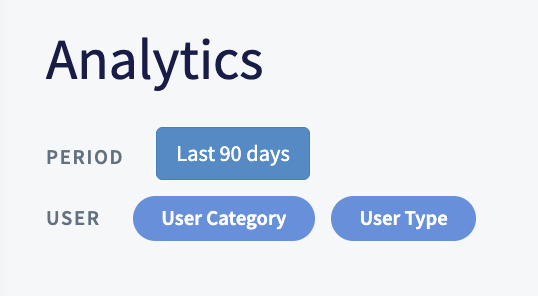
Use the filters at the top of the dashboard to focus on the members and time period that matter to you. Your selections apply across every section.
Period sets the date range for all metrics. Choose your range from the 'Last 90 days' dropdown.
User Category filters by staff, primary user or linked.
User Type filters by the type of member, so you can view a specific group on its own.
The dashboard updates automatically as you change your filters.
Reviewing your community metrics.
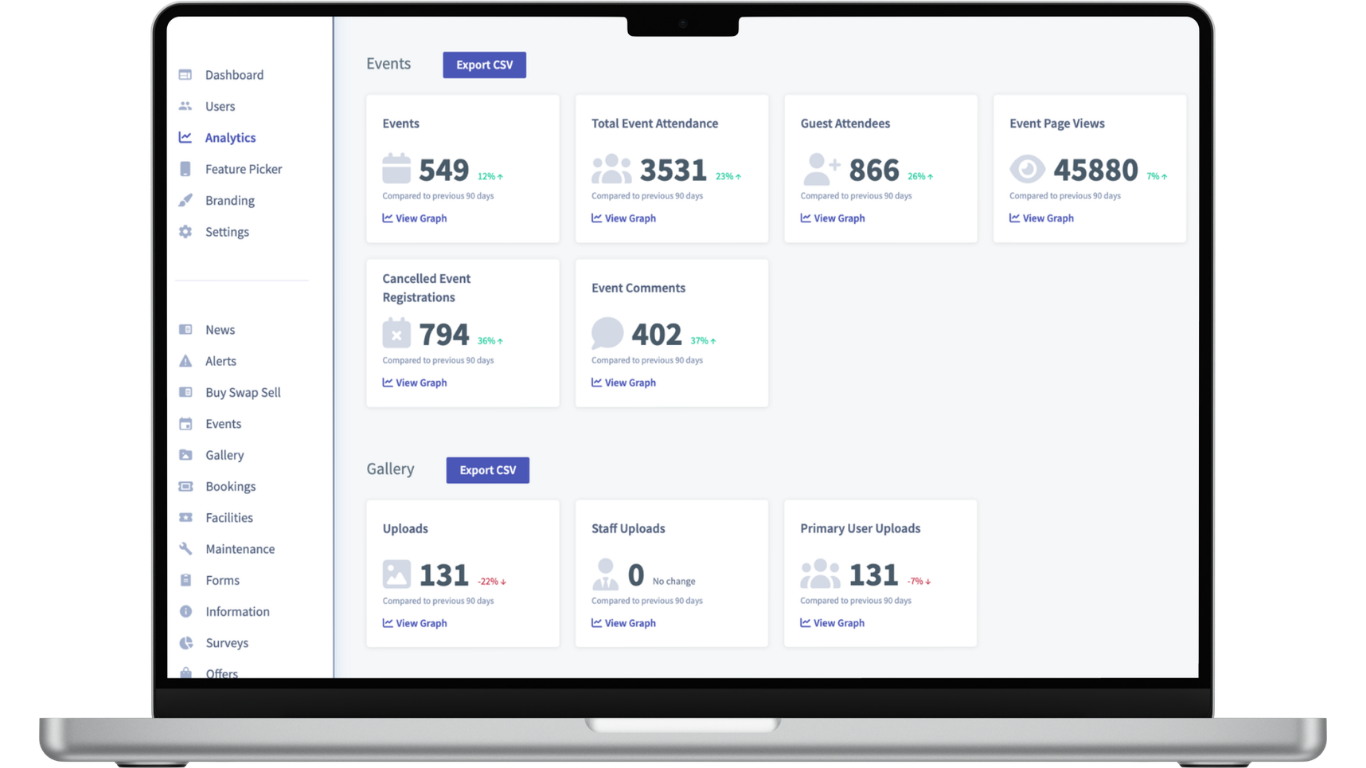
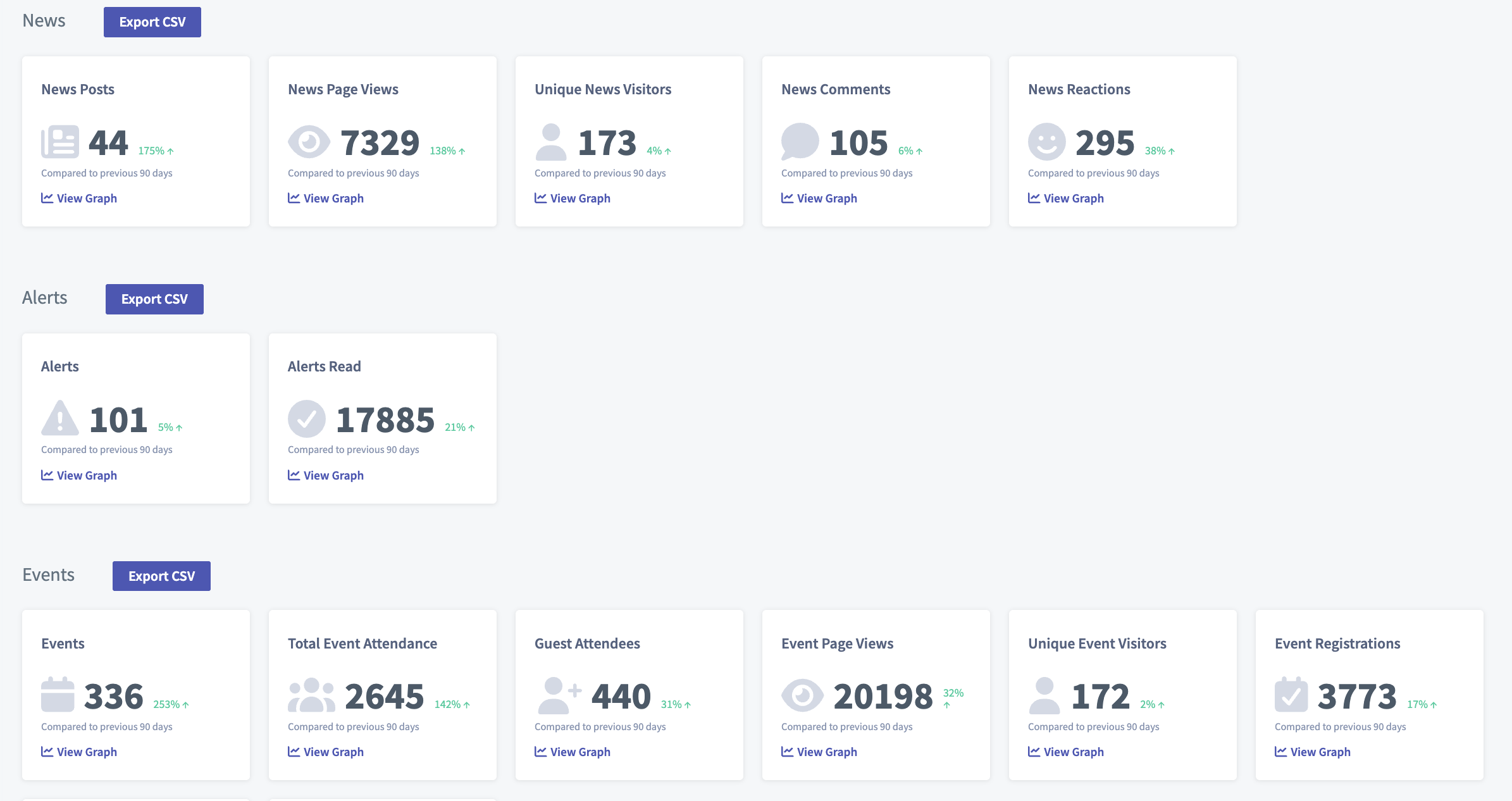
Activity is grouped into areas such as News, Alerts and Events, each shown as summary cards. Every card displays the current total and the percentage change against the previous 90 days.
Exploring your metrics over time.
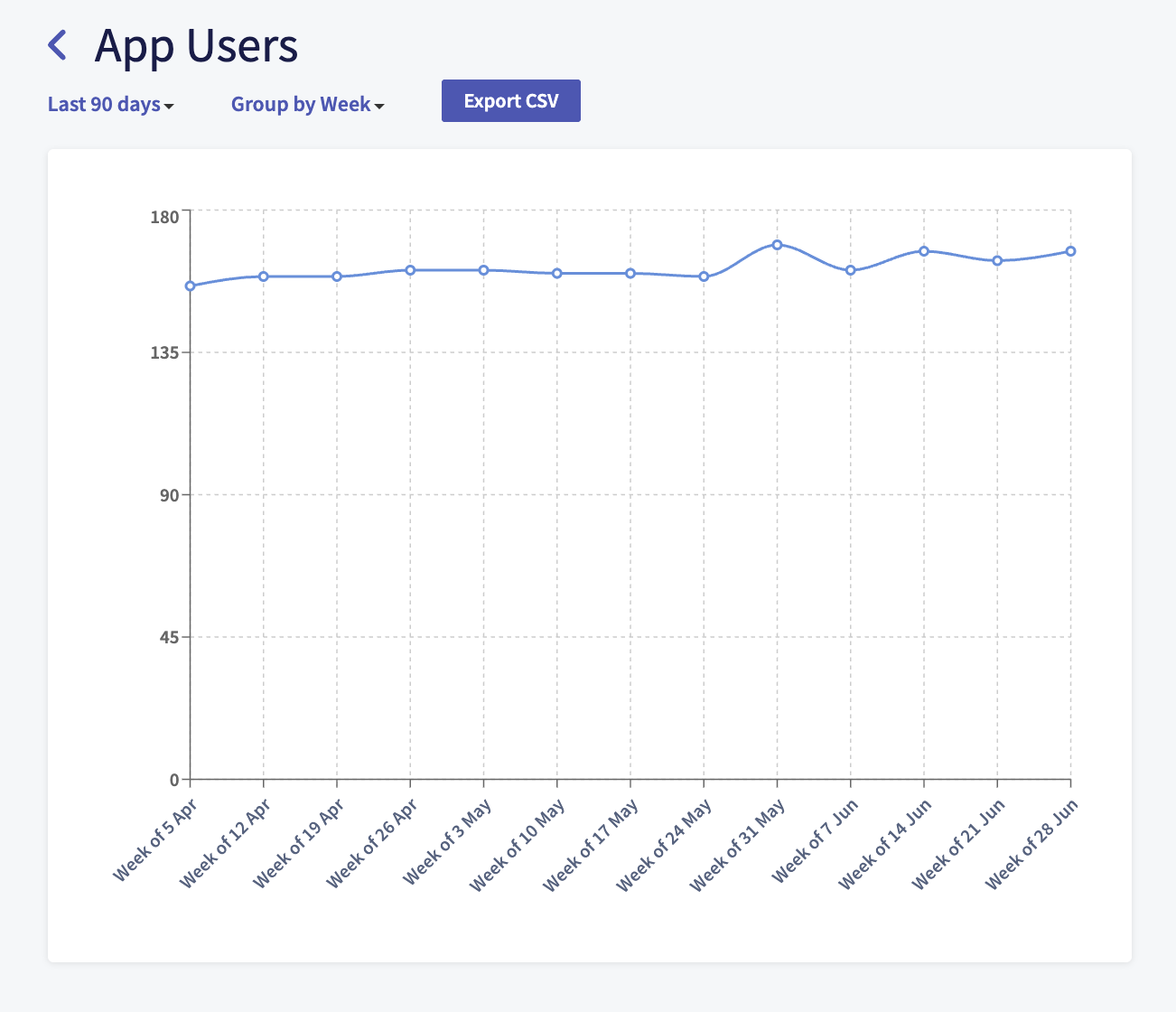
Most metrics on the dashboard can be viewed as a graph, so you can spot trends and measure the impact of your activity.
To do this:
Click 'View Graph' on the metric you wish to explore.
Choose your time period from the 'Last 90 days' dropdown.
Choose how the data is grouped from the 'Group by Week' dropdown.
The graph updates automatically as you change your selections.
Exporting your data.
To do this:
Click 'Export CSV' next to the section you wish to export.
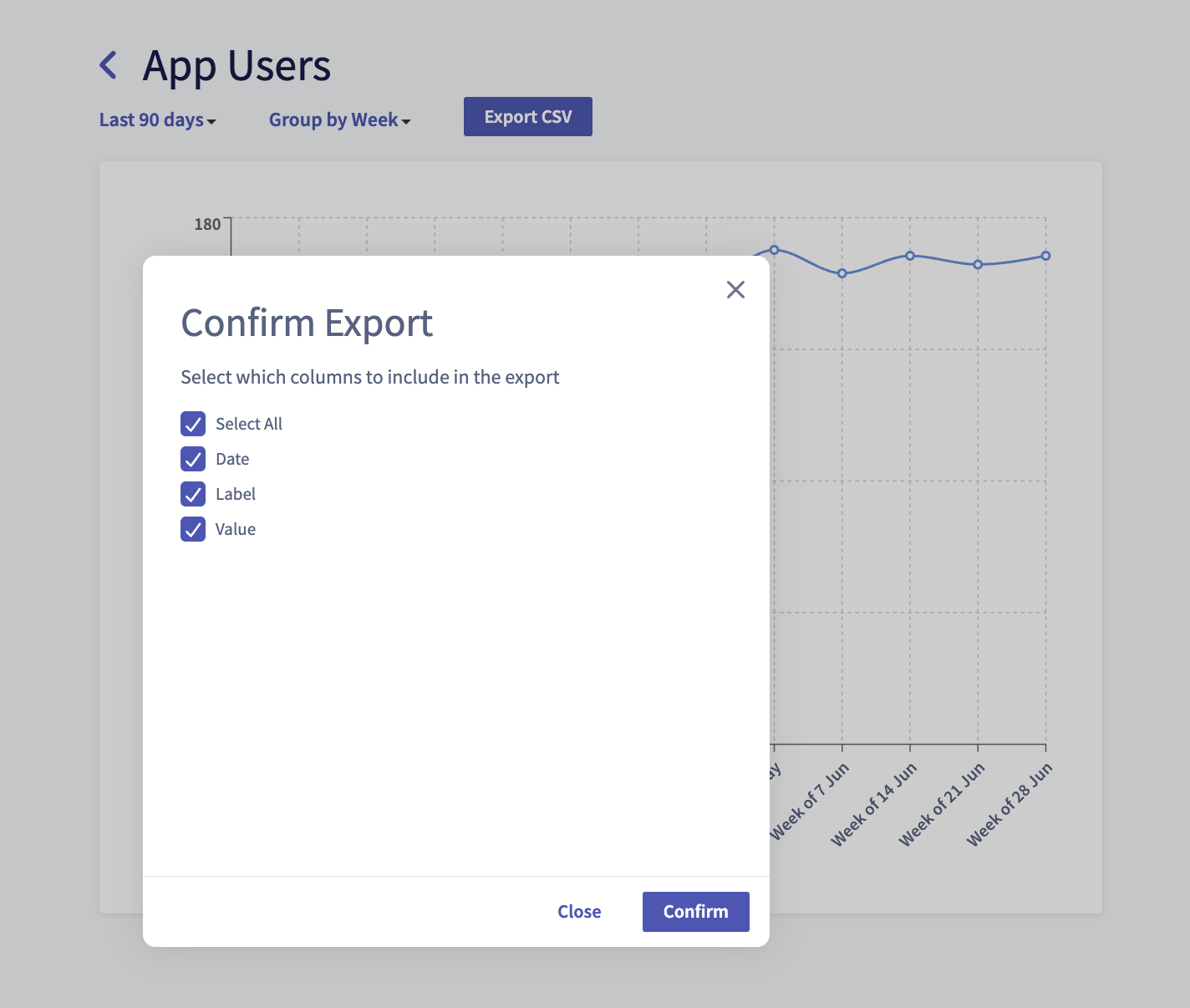
Select the columns to include, or tick 'Select All'.
Click 'Confirm' to download the file.